Cubex is a proof of concept about how container environments can be
configured at startup rather than creation. It works with OCI-compliant
images to create and manage isolated container environments called
**subsystems**, running rootless by default.
It explores whether separating the container image from its runtime
configuration can provide a more adaptable approach. Instead of
recreating an environment for different requirements, Cubex aims to
let configurations be adjusted when a subsystem starts, including
how it accesses host resources.
**Warning:** Cubex is an experimental proof of concept. Its behavior, limitations, and security properties have not been fully evaluated. Do not rely on it for production or security-critical workloads.
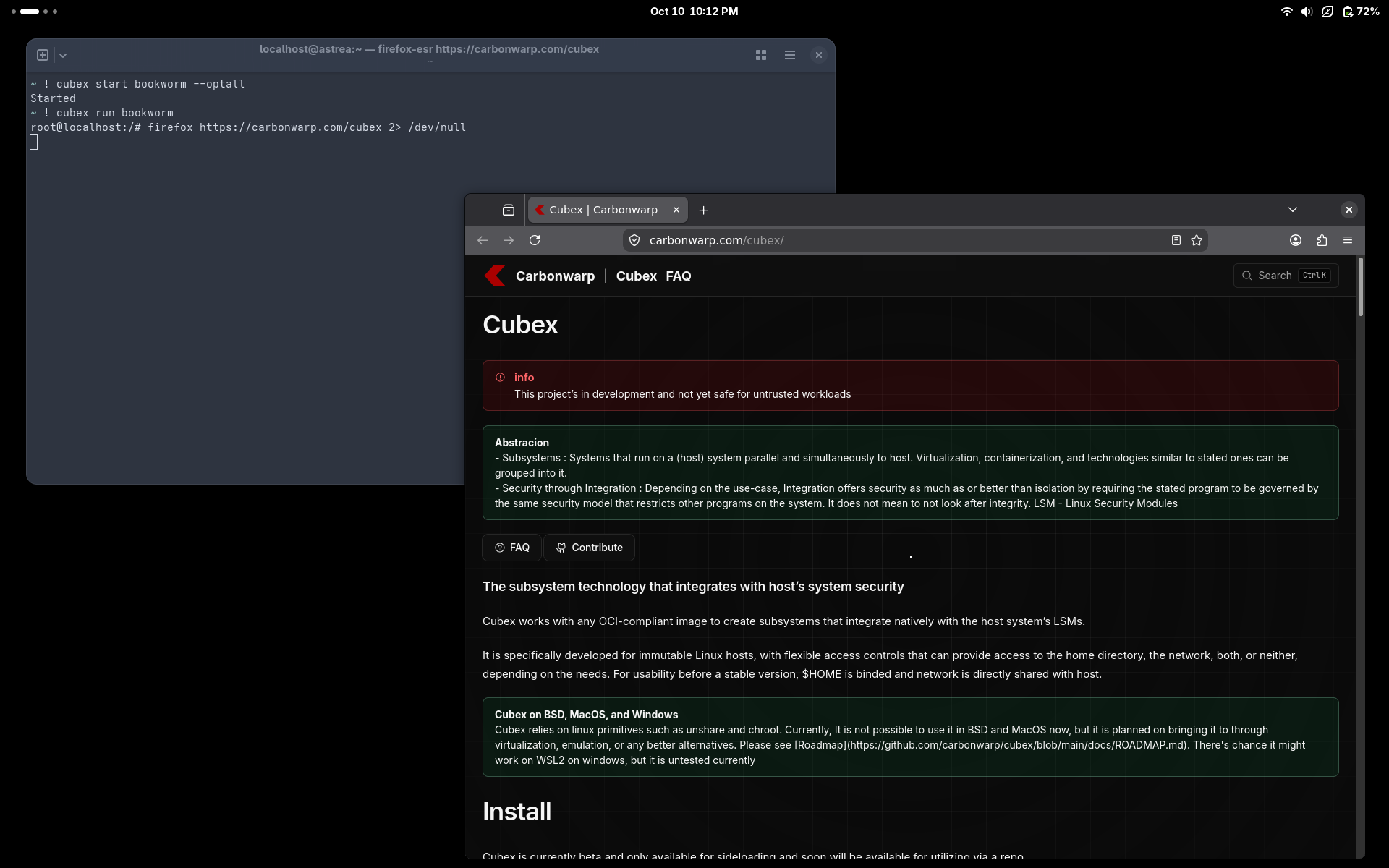 Currently, it can search, pull, and store images, and create subsystems that either optin to run as if host at start or isolated (though it also has network access but, just isolated from host's).
# Install
Cubex is available for Linux via sideloading .
View Public Key
```
-----View Public Key-----
mDMEasQRTRYJKwYBBAHaRw8BAQdAMa1vpexLNi3tWaCtT2XV86QUyuON6IO3fg2w
J/ZVMVG0GUN1YmV4IDxjdWJleEBjdWJleC5hbHBoYT6IeAQwFgoAIBYhBEehYo+M
UA4JKoTwg26LJ7DxHOUHBQJqxpzEAh0gAAoJEG6LJ7DxHOUHXeQBAP8sze90C3tn
B3HLf17V7vM3JlWjlSoJPSa0qU3iKjMdAQDfo3ObC+YyWsRImFEcJxInxu2v09HH
vl8BokeLdp5WCYiTBBMWCgA7FiEER6Fij4xQDgkqhPCDbosnsPEc5QcFAmrEEU0C
GwMFCwkIBwICIgIGFQoJCAsCBBYCAwECHgcCF4AACgkQbosnsPEc5QfoNQD/TuAV
ksFgb3hG4+Nm5Ne9SGDezITZOxHa2AXI035fwhQBAOAaQUfA8+ZOvuBB9vahEaj5
3aI5EWYPzcNpxCLn6+4MtB5DdWJleCA8c3VwcG9ydEBjYXJib253YXJwLmNvbT6I
kwQTFgoAOxYhBEehYo+MUA4JKoTwg26LJ7DxHOUHBQJqxpzEAhsDBQsJCAcCAiIC
BhUKCQgLAgQWAgMBAh4HAheAAAoJEG6LJ7DxHOUHaPIBAPDVSbmbk4sXhYxBzqI3
VFoRoxDyNf1GIVCyLlvqmBM9AQDm7da0JMlPeIvfRWmhMV4DEsgCIvMcQXryEedF
da0uCg==
=VxW7
-----END PGP PUBLIC KEY BLOCK-----
```
Public key is also available at
Currently, it can search, pull, and store images, and create subsystems that either optin to run as if host at start or isolated (though it also has network access but, just isolated from host's).
# Install
Cubex is available for Linux via sideloading .
View Public Key
```
-----View Public Key-----
mDMEasQRTRYJKwYBBAHaRw8BAQdAMa1vpexLNi3tWaCtT2XV86QUyuON6IO3fg2w
J/ZVMVG0GUN1YmV4IDxjdWJleEBjdWJleC5hbHBoYT6IeAQwFgoAIBYhBEehYo+M
UA4JKoTwg26LJ7DxHOUHBQJqxpzEAh0gAAoJEG6LJ7DxHOUHXeQBAP8sze90C3tn
B3HLf17V7vM3JlWjlSoJPSa0qU3iKjMdAQDfo3ObC+YyWsRImFEcJxInxu2v09HH
vl8BokeLdp5WCYiTBBMWCgA7FiEER6Fij4xQDgkqhPCDbosnsPEc5QcFAmrEEU0C
GwMFCwkIBwICIgIGFQoJCAsCBBYCAwECHgcCF4AACgkQbosnsPEc5QfoNQD/TuAV
ksFgb3hG4+Nm5Ne9SGDezITZOxHa2AXI035fwhQBAOAaQUfA8+ZOvuBB9vahEaj5
3aI5EWYPzcNpxCLn6+4MtB5DdWJleCA8c3VwcG9ydEBjYXJib253YXJwLmNvbT6I
kwQTFgoAOxYhBEehYo+MUA4JKoTwg26LJ7DxHOUHBQJqxpzEAhsDBQsJCAcCAiIC
BhUKCQgLAgQWAgMBAh4HAheAAAoJEG6LJ7DxHOUHaPIBAPDVSbmbk4sXhYxBzqI3
VFoRoxDyNf1GIVCyLlvqmBM9AQDm7da0JMlPeIvfRWmhMV4DEsgCIvMcQXryEedF
da0uCg==
=VxW7
-----END PGP PUBLIC KEY BLOCK-----
```
Public key is also available at 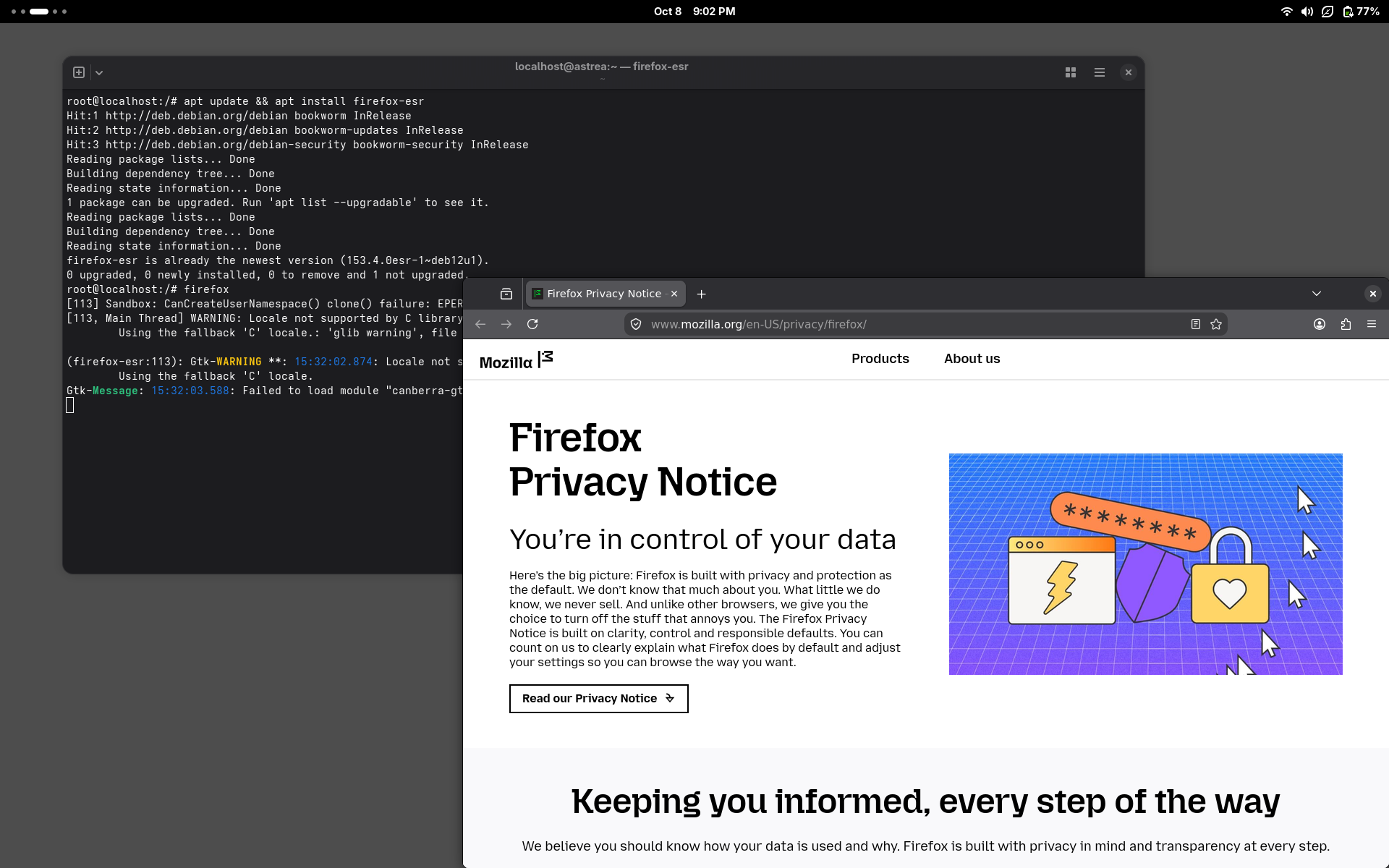
 8. **Stop**
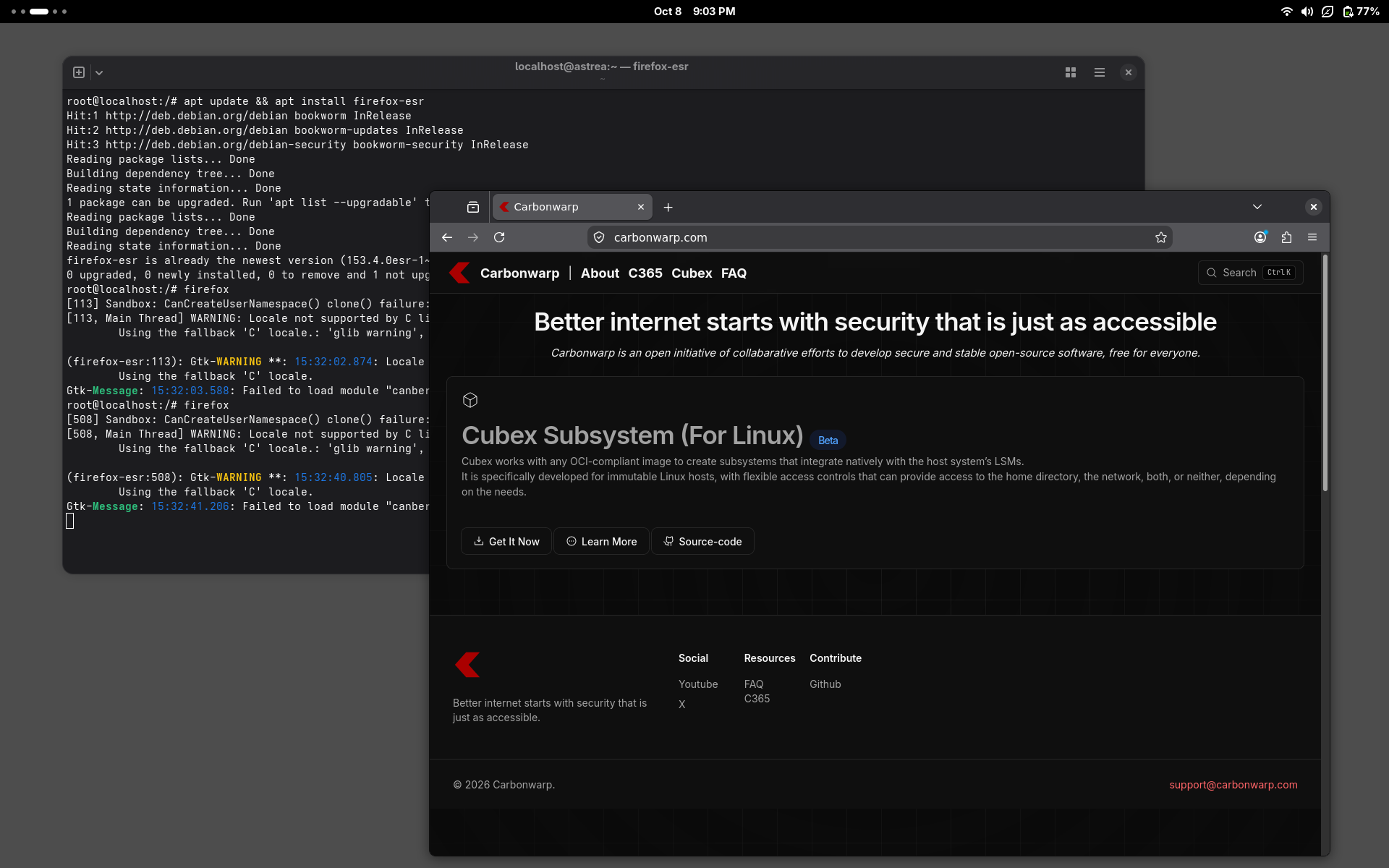
Now we can stop the container by closing firefox, exiting the shell, and running `cubex stop` or just opening another terminal tab in host and running `cubex stop`.
```bash
cubex stop bookworm
```
If it doesn't stop you can force stop by `cubex stop bookworm --force`
```bash
cubex stop bookworm
```
You can use `cubex list` to list all containers.
you can only do factory cleanup that removes all cubex registry image and containers in one command via `cubex clean` to remove all data related to cubex or `cubex clean subsystem` to remove containers.
Source: https://carbonwarp.com/cubex/index.mdx
8. **Stop**
Now we can stop the container by closing firefox, exiting the shell, and running `cubex stop` or just opening another terminal tab in host and running `cubex stop`.
```bash
cubex stop bookworm
```
If it doesn't stop you can force stop by `cubex stop bookworm --force`
```bash
cubex stop bookworm
```
You can use `cubex list` to list all containers.
you can only do factory cleanup that removes all cubex registry image and containers in one command via `cubex clean` to remove all data related to cubex or `cubex clean subsystem` to remove containers.
Source: https://carbonwarp.com/cubex/index.mdx